Guides \ MyWii - General Information Guide
MyWii.com.au - General Information Guide
This MyWii.com.au Guide is really just a guide that should help anybody with something about this website. Whether you want to know how to post your favorite Video in the forums, or whether you want to know how to get one of those cool Mii's people have as an avatar.
Since this is so big, click on the option you want to go to, once it has finished explaining how to do it, there will be a 'back to top' button, press that to come back up here.
Forum Info
How to add Emoticons into your post
How to add Bold/Italics into your post
How to Link other sites in your post
How to add Youtube Videos to your post
How to add Images to your post
Adding Reviews/News/Videos etc
Adding Youtube Videos to Video Section
Adding Images to the Gallery
Adding Reviews to the site
Adding News to the site
Adding your Friend Codes
Private Message and Profile
How to Private Message (PM)
What are Friend Requests
What is your Mii/Profile
Other various Information
What are Kudos?
How to find the most recent posts
How to Become an Admin
Games and Accessories
How Polls work
Making a Mii on The Computer
How to Contact Admins
What other 'My'sites are there?
Forum Info
This will show you how to add certain things to your posts in the forum throughout MyWii
Note: These will not work in some places like the gallery when posting comments
How to add Emoticons to your post
 = :)
= :)
 = :P
= :P
 = :(
= :(
 = ;)
= ;)
 = :D
= :D
 = :O
= :O
 = :S
= :S
 = :|
= :|
How to Add Blod/Italics to your post
[b] Text Here [/b]= Text Here - (Bold)
[i] Text Here [/i]= Text Here - (Italics)
How to Link other sites in your post
Simply paste the URL of the site in the address bar into the writing window, simply:
http://www.myds.com.au
Note: if you do not add http://, it will not link to the website, eg:
YES - http://www.myds.com.au
NO - www.myds.com.au
How to add Images to your post
[img] URL of picture [/img]
E.G [img] /_assets/http/www.mywii.com.au/img/ads/MyWii-Island.gif [/img]
If you did it right, it will look like:
How yo add a Youtube Video to your post
[youtube] Video ID [/youtube]
E.G, Video ID is in the URL of the video
http://www.youtube.com/watch?v=vGu8yS5kwhQ
[youtube]vGu8yS5kwhQ[/youtube]
Adding Reviews/News/Videos etc
Adding Youtube Videos to the Video Section
Well first of all, go to the Video Section. On MyWii.com.au and then in the top right hand corner of the page, there should be a button saying Contribute. Press It.

It will then ask you for a Video URL from Youtube. If you don't know where to find a video URL, check out the Youtube Guide. Place the URL in here, and press Fetch Video.

Then it will show you a page like the one below. All of the info in here will be auto-generated from Youtube meaning, unless you want to change anything, then just leave it as it is. Remember to read our Rules on Videos

Adding to the Gallery
To start of head over to the Gallery. Once here in the top right hand corner press on the button that says add

Now in here it shall ask you for the Title, the heading of it, the description, which is a brief outline of it, and the tags, whihc help people find your picture when looking for a certain type. Remember, you can only add pictures saved on your computer, if you find one on the Internet you like, save it to your computer then browse for it. Once you are done, Upload it, and wait. Then you should have your image on the gallery of MyWii.com.au. Remember to read our Rules on Gallery Before uploading.

Adding your Review
To write your own review, you can go to the Games section and click on a game, and then Press Write Review, also shown below. Or go to the Reivews Page and scroll down to the bottom, and press Write a Review

Now that you have done that, fill in the Title, with the heading of your review. Then do the summary, this is what appears as like the blurb of a review, so people can get a quick idea of it before they read it. Then your rating out of 10 of the game. Then write your review itself. Make sure you read our Rules on Reviews before you write one. Once you have done all that, Add your Review, or if you want to see what it looks like first, Preview It

Adding your news
First of all go to the News Section and in the top right hand corner, press the contribute button.

Then it will ask you to add stuff about your news, same principle as most, add a title, a summary, and the body of the news. Remember to add in a source URL. This is very important, you can get in big trouble if you don't link the site that you found the news from. Then Post your News.

Adding your Friend Codes
Want to share your friend codes with everyone on the site? then go to the Friend Code section. If you already have your friend code for your Wii Console in your Mii Page (see below), then it will be automatically updated. Your Friend code will look like this...

So what happens if there is a Wi-Fi game you want your friend code for? well simply press the game in the list at the top you want to add it to.

Now just enter the code of your game in here. But remember. Do not put a space between the digits. it will automatically do it, just type the 12 digits straight. Once you have done that, press Add. Now go play all other people!

Private Messaging and Profile
Private Messaging (PM)
When you go to the MyWii homepage If you have a Private Message (PM) it will notify you like this. Click on it.

This will take you to your inbox, here is an example of an inbox with 2 PM's and 2 Friend Requests. As you can see that is how the PM's are shown. Click on the one you want to read.

Once you click on it the message will show up. If you ever get abused through a PM please notify an Admin. If you want to reply to the message, press the reply button at the bottom of the message that was sent to you. Remember not to abuse the person you send it back too, no matter what.

Friend Requests
Same goes with friend requests, head over to the MyWii homepage. Once you are there it will say you have 1 friend request. If it says you have a Private Message as well, it does not mean you have a Private Message and a Friend Request, they are both the same thing, so for every friend request you have, it means 1 of the PM's are a friend request.

Same inbox as above. everything is really the same, except it says friend request. Remember when you accept it, they will be added to your mates.
When the page comes up, it shows you the user that is requesting you. Plain and simply, if you want to or not, Accept, or Decline.

Mii/Profile
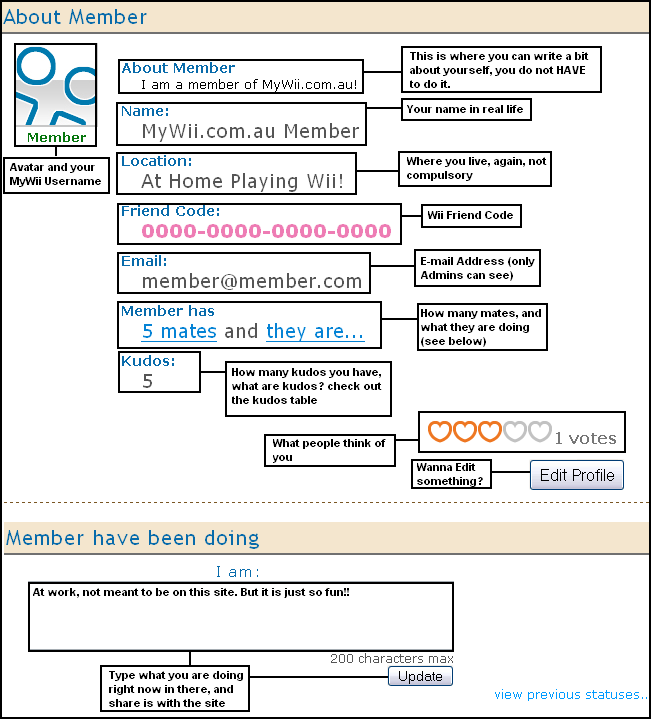
Your Profile is where people check out things about you, in here, you put your Friend Code, about you, location anything. Remember, nothing in here you really HAVE to do. Although it helps the site say, if you put your real e-mail, admins can contact you, if you don't, you can't be contacted. Under your mii page there is a new feature. This is where you can post what you are doing right now, and share it with everyone
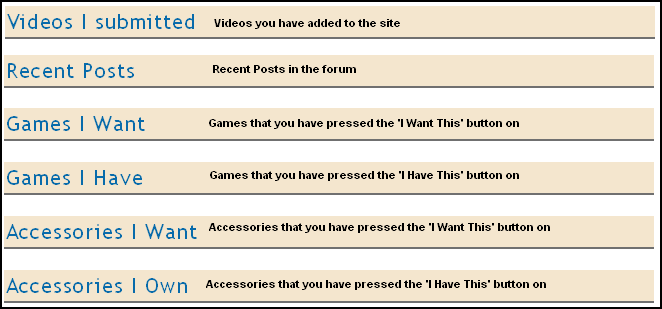
Also if you want to keep track of what you have posted in, or what you have clicked 'I Want This' on, check out the thing at the bottom of the page.
Other Various Information
What Are Kudos?
Kudos is a way of rewarding people who do the right thing, and make them punblicly noticed through MyWii.
The Current Kudos System Is:
| What to do |
Kudos Earned |
| Each Vote for a game/accessory |
1 Kudos |
| Each Post/Comment |
2 Kudos |
| Each Video Added |
5 Kudos |
| Each Picture Added to Gallery |
5 Kudos |
| Each Review Written |
20 Kudos |
| Each Piece of News Added |
25 Kudos |
| Each Review Recommended By an Admin |
50 Kudos |
| Each post Deleted by an Admin |
-10 Kudos |
| Each Review Deleted by an Admin |
-35 Kudos |
How to find the most Recent Posts
To find the most recent posts made on the website (besides forums which are displayed at the top of the homepage), go to the MyWii homepage and then scroll down and you should find an image that looks like this below. The top are the most recent, click on the title of the topic to go there and comment aswell.

How to Become an Admin
To become and Admin on any MySite you must do the following:
- Show a strong sense of right and wrong on the site
- Do not Flame members, or spam on the site
- Be helpful to the members and help fix problems
- Be constantly on the site
- Inform current Admins of problems on the site
- Do not ask to be admin, if you are worth it, we will tell you
Being Admin is not simply running around deleting things and locking threads and banning people, there is a lot of background work involved, most of which you won’t get any credit for besides self credit knowing you did something wrong.
If you are doing the right things, we will notice it and inform MrWii and you will be put on a 1 – 2 week trial where we will watch what you do and how you act, upon making a decision of whether you should continue with your duties
Games and Accessories
Go to the Games Section and then you will see, the latest games added to the site, the most popular, voted by the members, and just some random Virtual console games. Click on the Games button to go to a bigger screen, then press any game.

Once here, this is a game, you can post in it, have a look at the pictures, vote for how you rate it, even press the button to add it to your profile in the 'I Want This' part.

How Polls work
The polls on MyWii are changed by Admins, if you have a suggestion, PM an Admin and they will discuss it with the others. You can only Vote Once. And then you can only comment after that.

How to make a Mii on the Computer
To create a Mii to use on the computer follow these steps:
- First go to Joystiq, MiiEditor or MiiWare
- create the mii to your liking
- press the "prt scr" button in between the F12 and Scroll Lock buttons
- open Adobe Photoshop or MS Paint
- open a new document
- go to edit and click paste
- erase everything but the mii
- copy the mii and put it on a smaller document in photoshop or ms paint
- save the mii with a name that is eay to remember
- go to your mii profile on MyWii
- click edit profile
- under "change avatar" there should be a button that says "browse" and click on that
- find your mii picture and click it
- click "open"
- click "change"
How to Contact Admins
Active Admins
PM an Admin for any trouble on the site at all:
Admin Likes
PM these guys for certain jobs around the site, they will be listed of what section of the site they help out with.
Site Creator
Please try not to avoid over PM'ing MrWii as he is a busy man:






This was made this to help the people of mywii and hope that this helps answer those little questions that people ask
If someone new comes to this site, and makes a thread, link them here. We need to help eachother.
This is massive, and i fixed it by go to the top of this page, then use the links to find what you want. Then press, 'back to top' and do it again.
If you have any problems with this guide, or think i should add something, PM me
I hope you enjoy it
Yours Truly
-Chambalam
 03/05/2007
22
03/05/2007
22
Join MyWii to vote for your favourite story!
- Tags:
-
guide
info
mywii
- More Info:
- Nintendo Wii